
Features

The full Acorn feature map

A README-style feature catalog for the site. Scan the workspace, agents, GitHub panel, history, settings, and system features without repeating the landing page.

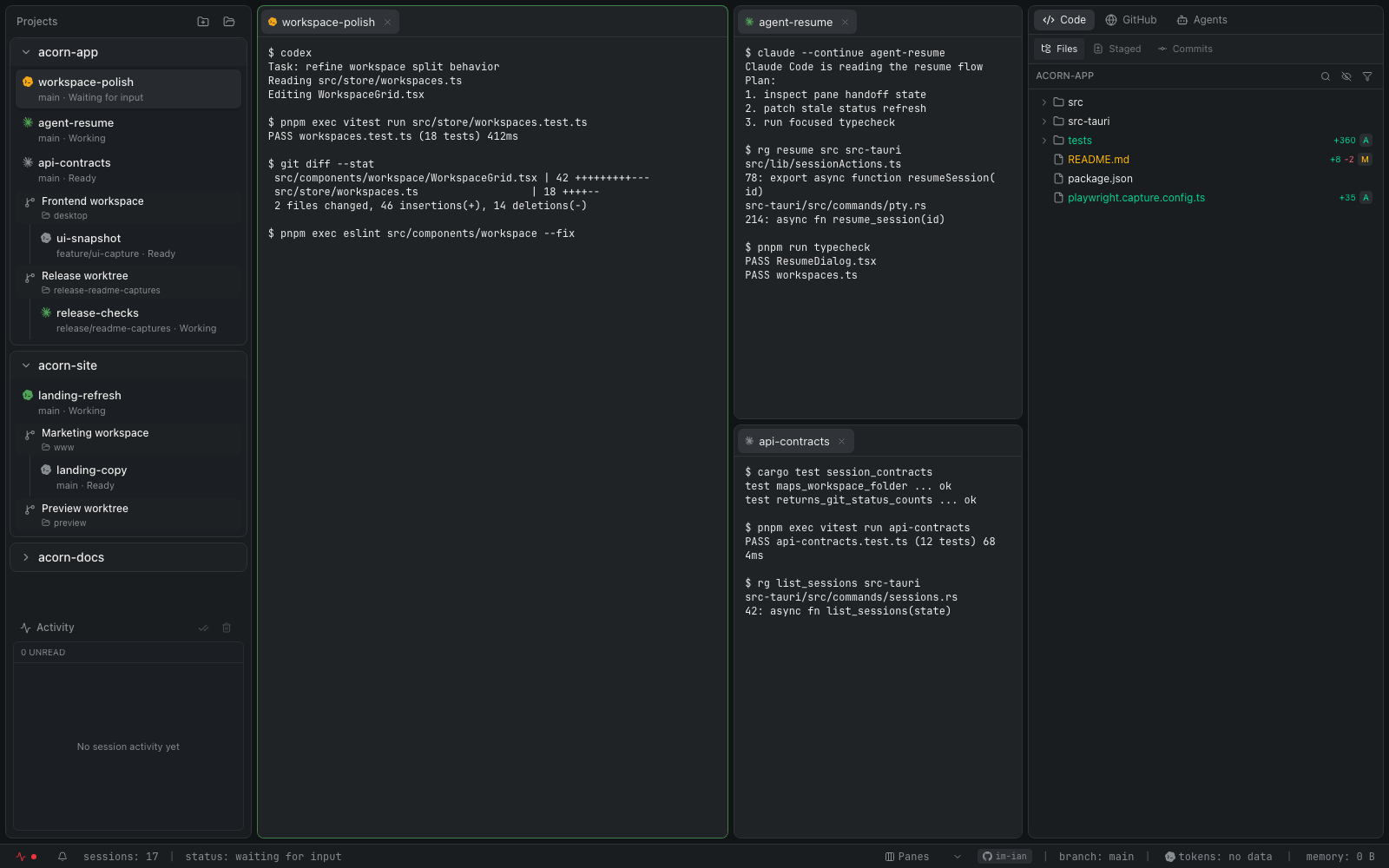
Acorn main workspace

At a glance

  • Pane + Kanban + Canvas project workspaces
  • Create projects + manage linked and isolated worktrees
  • Claude / Codex / Antigravity and other AI CLI sessions
  • Native chat with edit, regenerate, and fork controls
  • Session lifecycle Kanban + work summaries
  • File · Code · Diff · Media + GitHub panel
  • Background sessions and Control session
  • Activity · History · Todos · token usage
01

Workspace and projects

The core surface for splitting, arranging, and returning to parallel work.

Multi-pane workspace

Split horizontally or vertically, resize freely, drag sessions between panes, and move, clone, or rearrange tabs. Double-click an empty pane to create a session.

Canvas workspace

Arrange, drag, and resize live terminal and chat sessions freely. Navigate with zoom, pan, fit-to-view, layout reset and undo, plus a minimap for distant sessions.

Multi-input mode

Send the same input to every visible session for repeated commands or parallel checks.

Project groups and ordering

Create a git project or add an existing one, organize it into named workspaces, and reorder projects and sessions by dragging.

Worktree workspaces

Adopt an existing linked git worktree as a sidebar workspace, keep related sessions together, and inspect or remove worktrees from project settings. Shared worktrees separate removing sessions from deleting files on disk.

Isolated git worktrees

Give standalone sessions their own worktree so one repository can be worked on in parallel without collisions. Cleanup includes prompts, an always-delete mode, and undo for delayed deletion.

02

Terminal and agent sessions

Sessions run on native PTYs and start in your shell, so you choose the agent CLI.

PTY terminal

Native PTY shell sessions restore scrollback on reopen and support clickable file paths and URLs.

Run any AI CLI

Every session starts as $SHELL. Run Claude Code, Codex, Antigravity, Ollama, llm, or a custom CLI directly inside it.

Native chat runtime

Stream conversations with Claude, Codex, or Antigravity, stop responses, and switch providers. Attach files, copy or edit messages, regenerate responses, and delete the following branch.

Session fork

Fork terminal agent sessions into the current pane or a fresh worktree. Native chats can branch from any message into the same worktree or a new isolated one.

Automatic tab titles

Agent tab titles update from conversation context so many sessions stay readable.

Live session status

The sidebar shows idle, waiting, and working states based on Claude, Codex, and Antigravity transcripts plus hooks.

03

Kanban and work summaries

See where every session is now and what each session has produced.

Lifecycle Kanban

Switch between Pane and Kanban views and remember the choice per project. Session status, working-tree diffs, and PR state automatically place work into Idle, Working, Waiting, Review, or Done.

Kanban operations

Search and sort sessions, inspect stage dwell time and stalls, mark work done, and resize columns. Open terminal or chat popovers, PR details, and new regular, worktree, chat, or control sessions from the board.

Work summaries

Aggregate changed files, line deltas, and status distribution for the current worktree in a session tab. Open files directly and inspect session, branch, and transcript metadata.

Conversation and token totals

Track native-chat messages and turns plus available input, output, cache, and reasoning token metadata from the session or summary baseline.

04

Persistence and background work

Keep session state and conversation history available across app restarts.

Conversation UUID tracking

Track Claude, Codex, and Antigravity conversation UUIDs per session and suggest resume on focus.

History tab

Browse project transcript history in the right panel and double-click to resume in a new terminal.

Background sessions

PTY sessions keep running after quit or restart. Reopen the app to restore the screen, and manage Kill, Restore, and Forget from Services settings.

Status bar controls

Check and control background session state from the status bar icon and dropdown.

05

Control session

An advanced automation mode where one agent session can operate other sessions in the same project.

Remote session control

Send input, read screens, create sessions, select targets, and close sessions from another session.

Quick start

Start with ⌘⌥⇧T, the project header Bot icon, or New control session in the command palette. From an existing terminal, run acorn-ipc promote-self to promote that session.

Platform support

Supported on macOS and Linux. Windows is not currently supported.

Control session docs
06

Right panel

Code, GitHub, and Agents tabs keep review and coordination work near the terminal.

Code: Files / Staged / Commits

File tree, search, Git status, staged changes, commits, and a Diff modal. File references from the terminal can open in the code viewer.

GitHub: PRs / Issues / Actions

Browse PRs and issues with detail views for conversations, commits, checks, and files. Create, edit, or delete issue and PR comments, toggle PR tasks, and generate merge messages with AI.

GitHub Actions

Inspect workflow runs and filter by workflow without switching to the browser.

Agents: Activity / History / Todos

Session notifications, transcript history, and Claude Code todo lists parsed from TodoWrite events.

07

Code, diff, and alerts

Supporting tools for reading code, reviewing changes, and tracking session events.

File Explorer and code viewer

Search filenames and content with regex, case, include, and exclude filters; toggle dotfiles and gitignored files; rename, trash, copy paths, and attach files to agents. The code viewer adds syntax highlighting, in-file search, and Markdown source/preview modes.

Media viewer

Preview image, video, audio, and PDF files inside the app. Images include zoom in, zoom out, and reset controls.

Diff viewer

Review changes in unified or split mode before committing or merging.

Activity center

Collect waiting, done, and failed events in the right panel and status bar, with native notification toggles and retention settings.

08

Settings and system status

Tune the app to your workflow and macOS environment.

UI and terminal settings

Set language, UI scale, theme, background image, the default Pane or Kanban view, and popover behavior. Tune terminal font fallbacks and presets, size, weight, spacing, line height, antialiasing, and resident terminal limits.

Custom shortcuts

Record shortcuts directly, detect conflicts, and reset individual bindings or the complete shortcut map.

AI providers and external tools

Use Claude Code, Codex, or Antigravity for Acorn's native AI features. Inside sessions, you can still run Ollama, llm, or custom CLIs directly, and configure an external editor command.

Cleanup tools

Manage background sessions, keep-awake behavior, close warnings, orphan worktrees, caches, and macOS protected-folder permission checks.

Status bar

Memory and process breakdown, current worktree branch, GitHub account badge, active Claude or Codex token usage, background sessions, and multi-input state.

Auto-update

Detect new macOS releases, show an update banner, and let the user choose when to apply it. The About tab also shows GitHub release notes for the current version.

Core shortcuts

Command palette ⌘P
New session / isolated / control ⌘T / ⌘⌥T / ⌘⌥⇧T
New project ⌘⇧N
Split pane vertical / horizontal ⌘D / ⌘⇧D
Equalize pane sizes ⌘⌥E
Close tab ⌘W
Focus sidebar / main / right panel ⌘1 / ⌘2 / ⌘3
Toggle sidebar / right panel ⌘B / ⌘J
Toggle multi-input ⌘⌥I
Next / previous session Ctrl+Tab / Ctrl+⇧+Tab
Latest needs-input session Ctrl+⌥]
Clear terminal ⌘K
Settings ⌘,